How to turn a photo of a schedule into a calendar
Daniel Arochena · Creator of Calendaro · Updated 26 October 2026
Most schedules arrive as a photo: a poster on a wall, a printed table or a screenshot from a group chat. That is exactly the starting point Calendaro is built for.
Prepare an image that can be read
Include the whole table, headers and legend: a column marked M may mean Monday and a colour may distinguish weeks. Avoid glare, steep angles and crops that hide times. For a PDF schedule, use a readable screenshot of the relevant page; do not assume the form accepts any document.
Before uploading a group screenshot, crop out names, phone numbers and unrelated messages. The form shows supported image formats and limits. If a photo is unreadable, take it again or type the content: a larger image does not fix a blurred time.
Add context missing from the table
Write the year, time zone and period start and end dates. Distinguish an activity's finishing time from the date until which it repeats. If the poster omits exceptions, do not expect the AI to know institution breaks or changes.
A useful fictional input: “This table is for the first term of 2026. Time zone Europe/Madrid. Applies from 2 November to 18 December. Friday's class ends at 12:00. Do not automatically exclude public holidays.” This illustrates context, not a verified conversion result.
Answer and check the questions
Calendaro interprets events and may ask for missing information. When several questions appear, you can fill their fields and submit them together, or answer in the text box. Before sending, check that an answer about the start was not also used as the end.
There is no guaranteed number of questions or promise of perfect reading. Correct a mistaken interpretation specifically: “The right-hand column is Saturday, not Friday.” The visible conversation belongs to the working session, not a stored conversation archive.
What a real test actually demonstrates
In the confirmed “Dentist on 10 October at 17:00” case, the duration was missing. Calendaro asked, received “1 hour” and generated the event and feed. Apple showed subscription settings, but the final confirmation was cancelled.
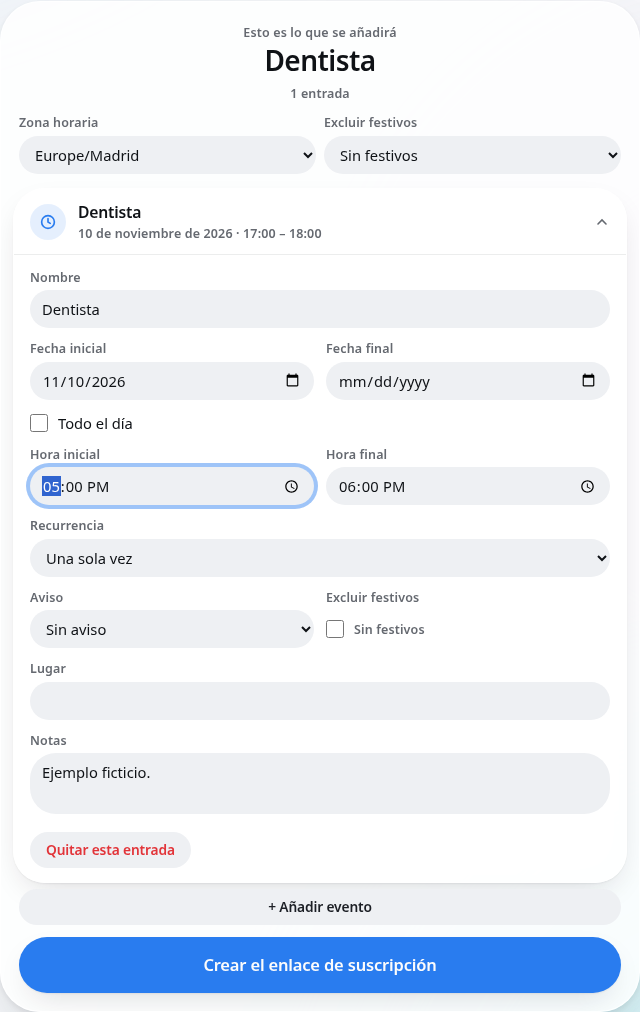
In a separate browser test with a fictional appointment on 10 November 2026 from 17:00 to 18:00, the review showed those times. Changing the start to 17:30 moved the end to 18:30. No email was submitted or calendar created in that test. The accompanying screenshot comes from that actual review.
Review before generating the link
Open each entry and check title, date, start and end times, frequency, weekdays, location and reminder. Review the time zone and holiday country too. A weekly event does not mean every day: it needs the correct weekdays and an end date for a bounded period.
Calendaro may infer information or leave it unspecified. Do not confirm a medical, work or academic schedule without checking its source. The current controls do not offer a complete per-date exception editor or every alternating-week pattern; split periods or use specific dates where necessary.
When reading fails or an entry is missing
Check that the photo shows the full row and explain abbreviations, colours and merged cells. For a missed entry, type its day and times explicitly or add it in the review. For incorrect recurrence, change the frequency and weekdays before creating the link.
If the request returns an error, read the notice before retrying. Do not assume a calendar exists until the final result appears. After the email and service acceptance, the link permits subscribing; downloading the file instead gives a copy with no later updates.
Frequently asked questions
Can it read every photo?
No. Legibility, headers and complete information matter. AI may miss or misread cells; always review.
Must I answer only with buttons?
No. Use the question fields or the text box to clarify the schedule.
Does it save the conversation as history?
The exchange is shown during the session. Calendaro does not offer persistent chat history; saved events are what you manage later.