How to subscribe to a calendar in Apple Calendar
Daniel Arochena · Creator of Calendaro · Updated 26 October 2026
Apple Calendar can add calendars through a subscription address. Unlike importing a file, the app checks that address again from time to time.
Before adding the subscription
Create and review your calendar in Calendaro and use its subscription link, not only the downloaded file. A subscription is separate from your iCloud appointments and is checked periodically. You do not need to give Calendaro your Apple password.
The Apple button uses webcal to open a compatible app. Behaviour depends on the device and browser: if no subscription screen appears, add the address manually. Do not publish the link on an open website or group if it contains personal schedules.
On iPhone and iPad
In the Calendar app, open Calendars, tap Add Calendar and choose Add Subscription Calendar. Enter the address and follow the confirmation screen. Names and locations can change with the system version; Apple also documents the Settings procedure for earlier versions.
Check the name, colour and options offered by your device. Confirm the subscription and return to Calendars to ensure it is selected. That final step matters: the system recognising an address does not mean you have finished adding it.
On Mac and across devices
In Calendar on Mac, select File → New Calendar Subscription, paste the address and click Subscribe. The settings let you choose a name, colour, location and Auto-refresh. Choose an interval suited to your schedule; Calendaro does not control when that check runs.
For the subscription to appear on other devices linked to your account, review the iCloud location option described by Apple and ensure iCloud Calendar is enabled. A subscription stored only on your Mac is not equivalent to one shared through iCloud.
What was actually checked with Calendaro
In the confirmed test of “Dentist on 10 October at 17:00”, Calendaro asked for the duration, received “1 hour” and generated the event and feed. Apple Calendar recognised the address and displayed subscription settings. The final confirmation was cancelled: we do not present this as a completed subscription.
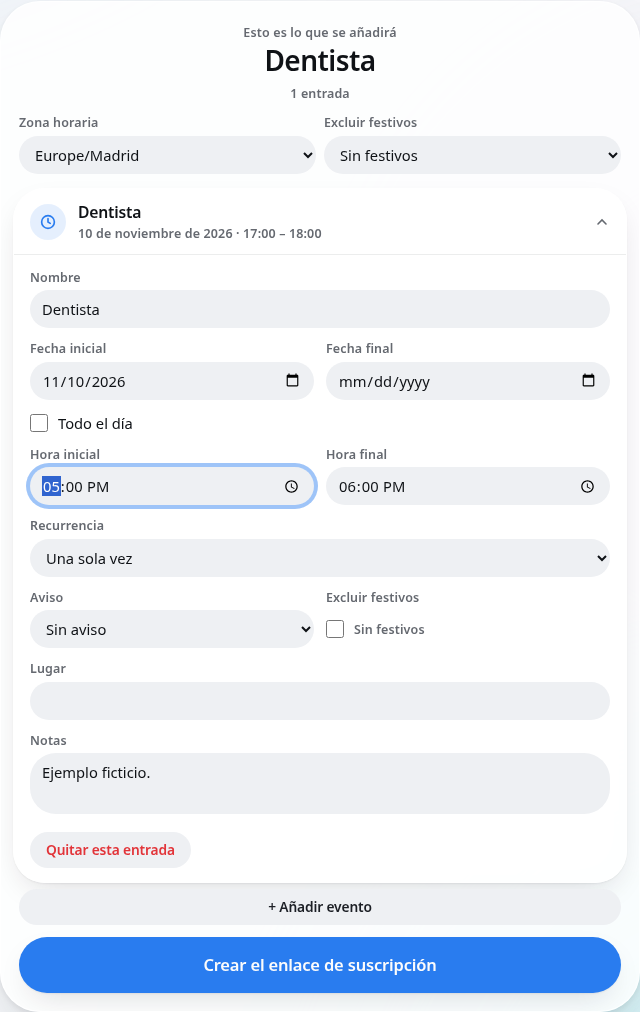
The review screenshot here belongs to a separate fictional November query run in the browser. It shows the product's fields; it does not demonstrate synchronisation with Apple.
When it is missing or still shows the old time
Check that you added a subscription rather than an import, that the calendar is visible and that you are looking at the correct date. On Mac you can inspect the calendar's refresh settings and use the application's refresh options.
If events are shifted, compare the time zone chosen in Calendaro with the device's time zone. If you revoked the link, replace the subscription address. Edit events in Calendaro, not in the subscribed copy; removing the subscription does not delete the original or copies someone imported.
Removing the subscription
On iPhone, open Calendars and the subscribed calendar's information; use the unsubscribe or delete option your version provides. On Mac, select the calendar in the list and delete it. Make sure you select the subscribed calendar, not your personal one.
To stop offering the feed as well, manage or delete the original in Calendaro. These are different actions: removing a subscription from your phone does not remove other people's access to the link.
Frequently asked questions
Do I add it again after editing?
Not if the address stays the same. Apple receives changes when it checks the feed again. Revoking and changing the link does require updating the subscription.
Can I choose refresh timing on iPhone?
Do not assume it has the same options as Mac. Auto-refresh is documented for Mac; check the options offered by your iOS version.
Is the calendar in iCloud?
That depends on where you add it and its settings. On Mac, review the iCloud location if you want it on devices using the same account.